

Thanks to the wonderful admins on the Mac Admins Slack, I was wrong—it’s not too hard to get Windows 11 ARM installed on a VM on your Apple Silicon-based Mac.
Rewind ⏮️ to a couple of years ago: I remember that Qualcomm had the ARM SoC license for Windows 11 ARM, and that Parallels got special permission to virtualize it. I could not get it working with UTM or VMware, so I just assumed that the purchase price of Parallels was what you needed to get Windows running on your Mac.
Well, that has all changed as now you can install Windows 11 ARM with the following VM providers:
Now why does only the above support Windows and not others like Virtual Buddy and tart? I can tell you why: Windows 11 requires specific hardware and also secure boot with TPM, and that would require specific support from Apple’s virtualization framework.
Parallels Desktop for Mac Pro Edition (Commercial + Paid)
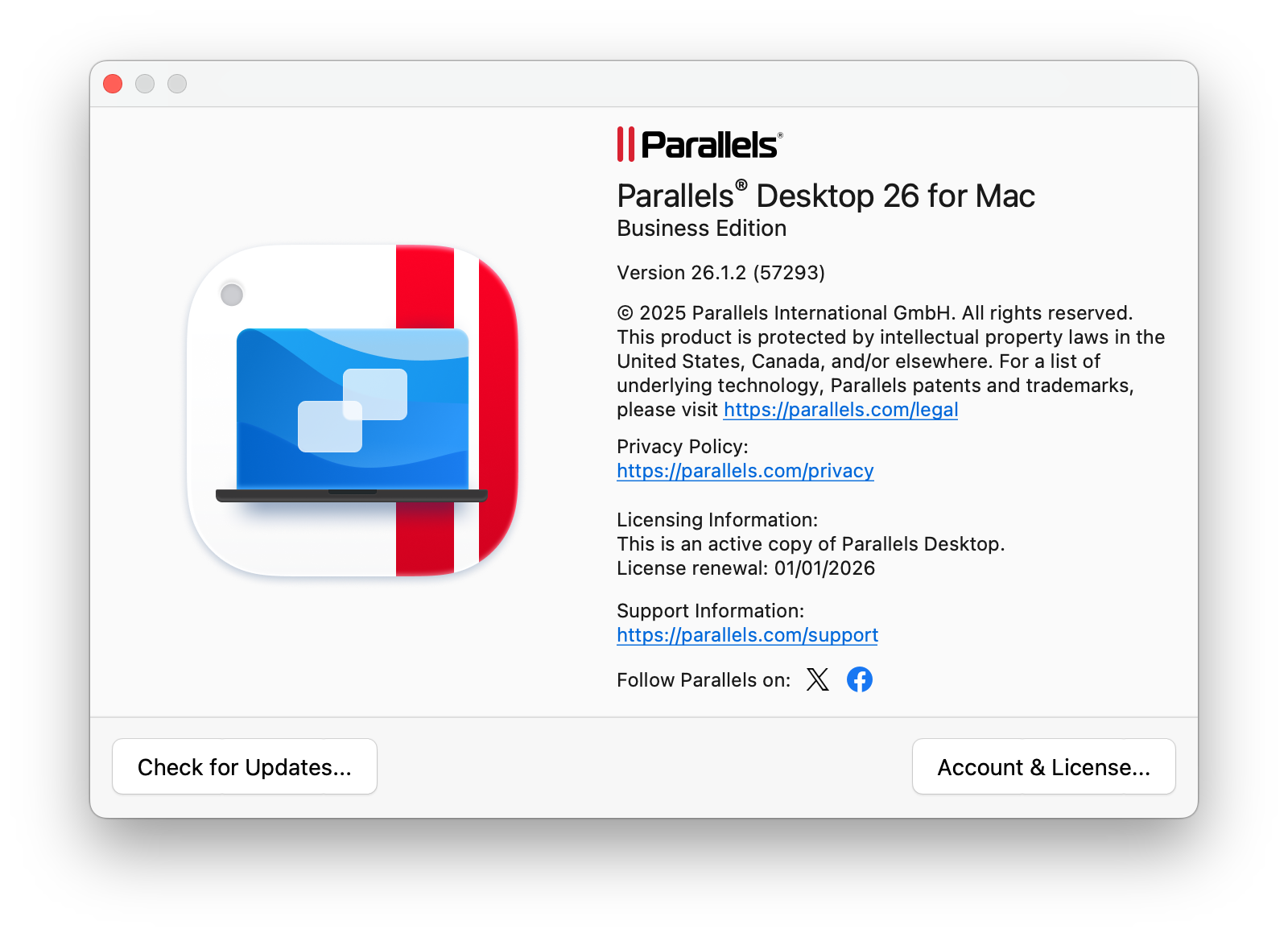
Let’s start with the current macOS VM leader—Parallels has many different editions, and installing Windows 11 ARM is surprisingly easy.
One click starts the download process, and the Windows installation and configuration are fully automated afterward.
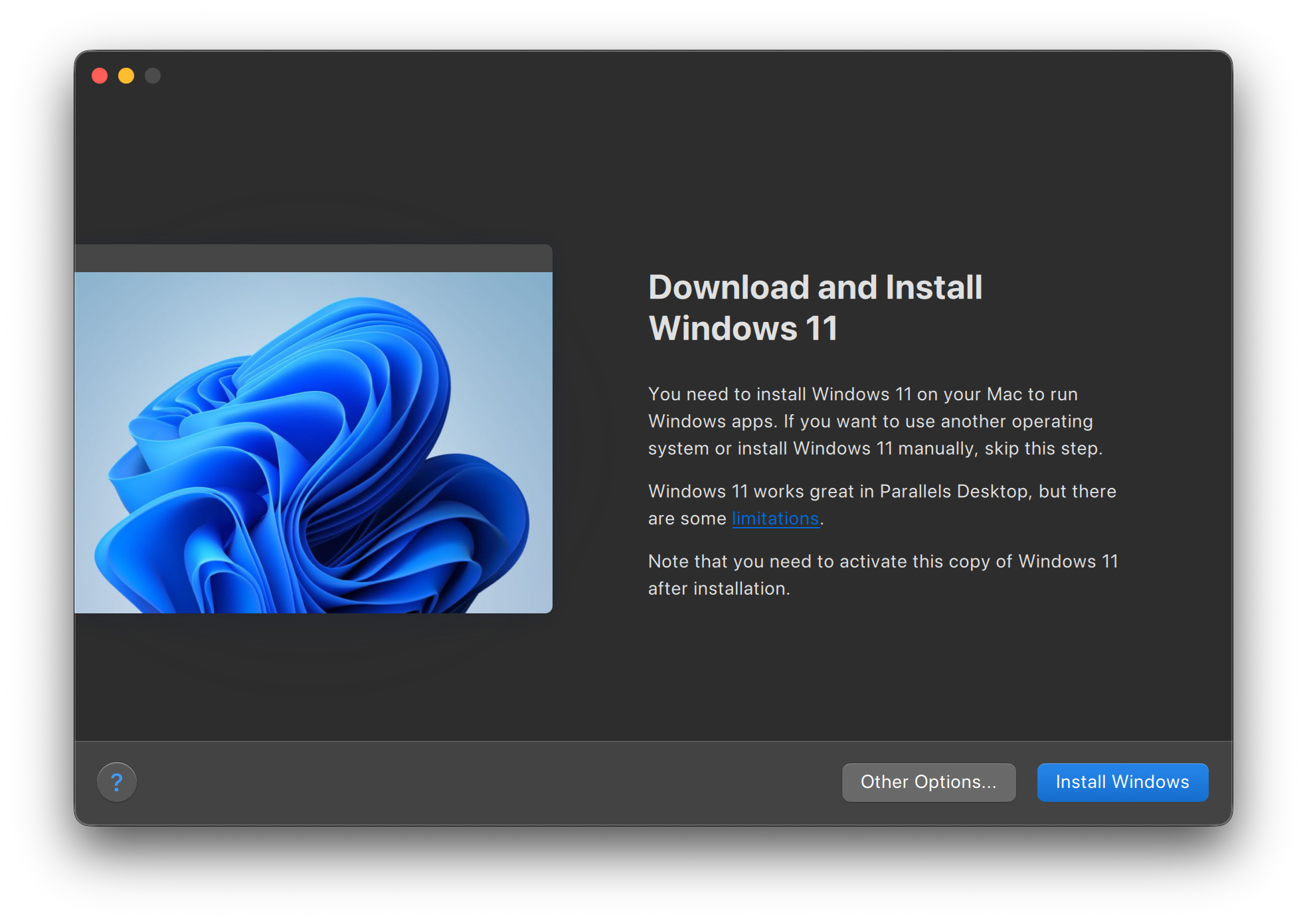
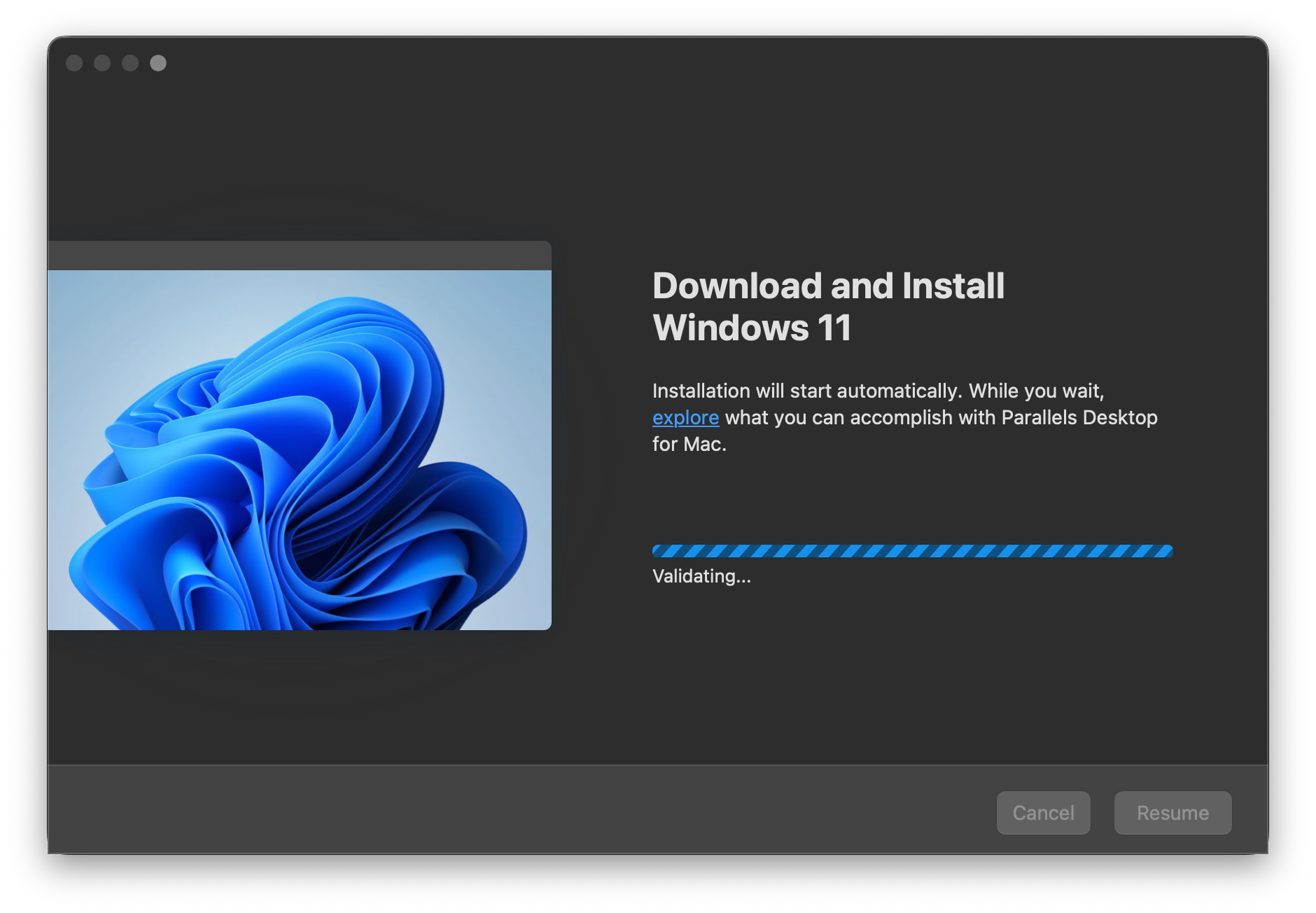
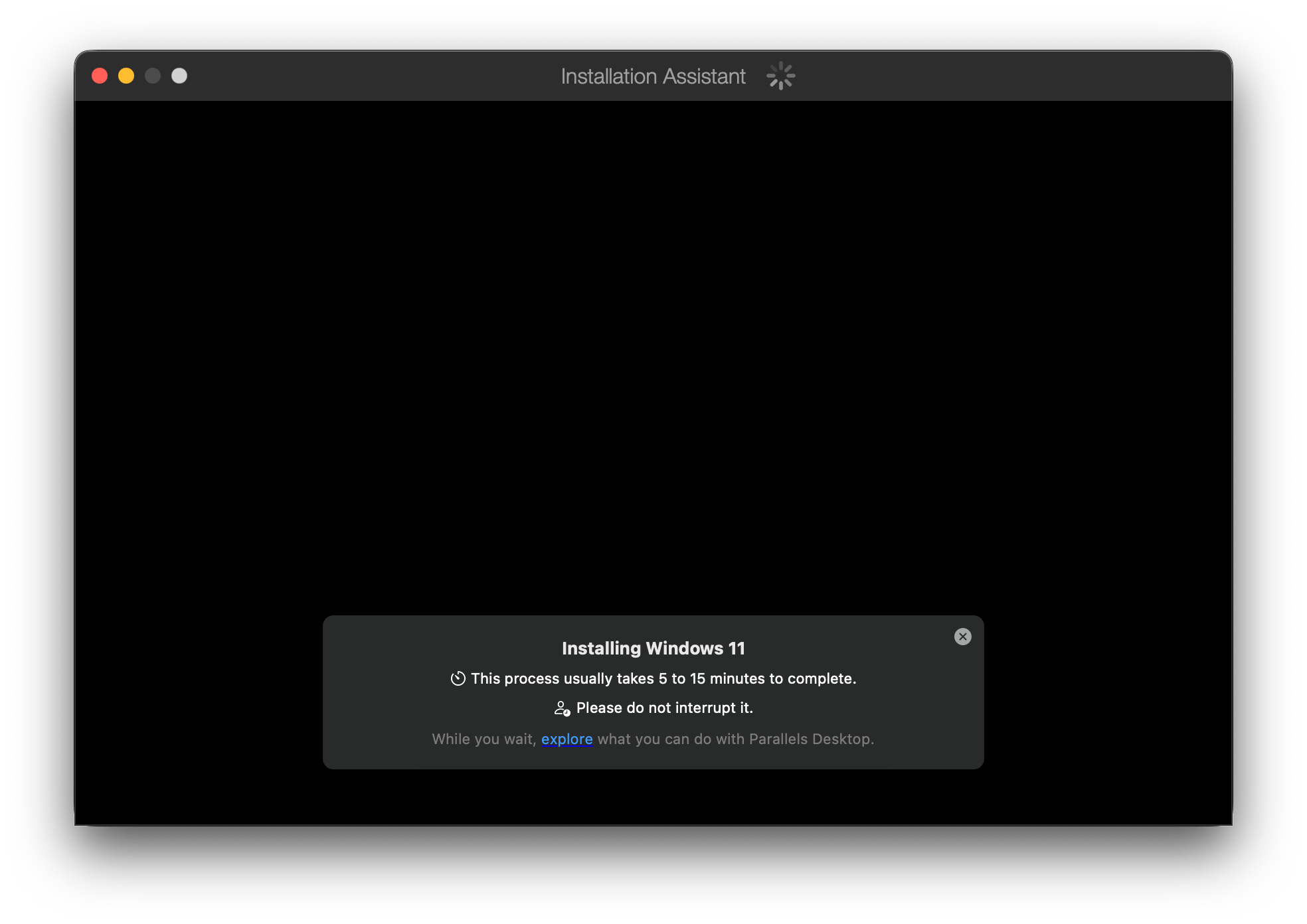
Parallels uses some of the Windows auto-deployment tricks, so there’s nothing to do for about 20 minutes while Windows installs. Once finished, you’re dropped into the Windows desktop with all Windows drivers (it’s a Windows thing most Mac users don’t know about) installed, plus instructions on how to activate Windows.
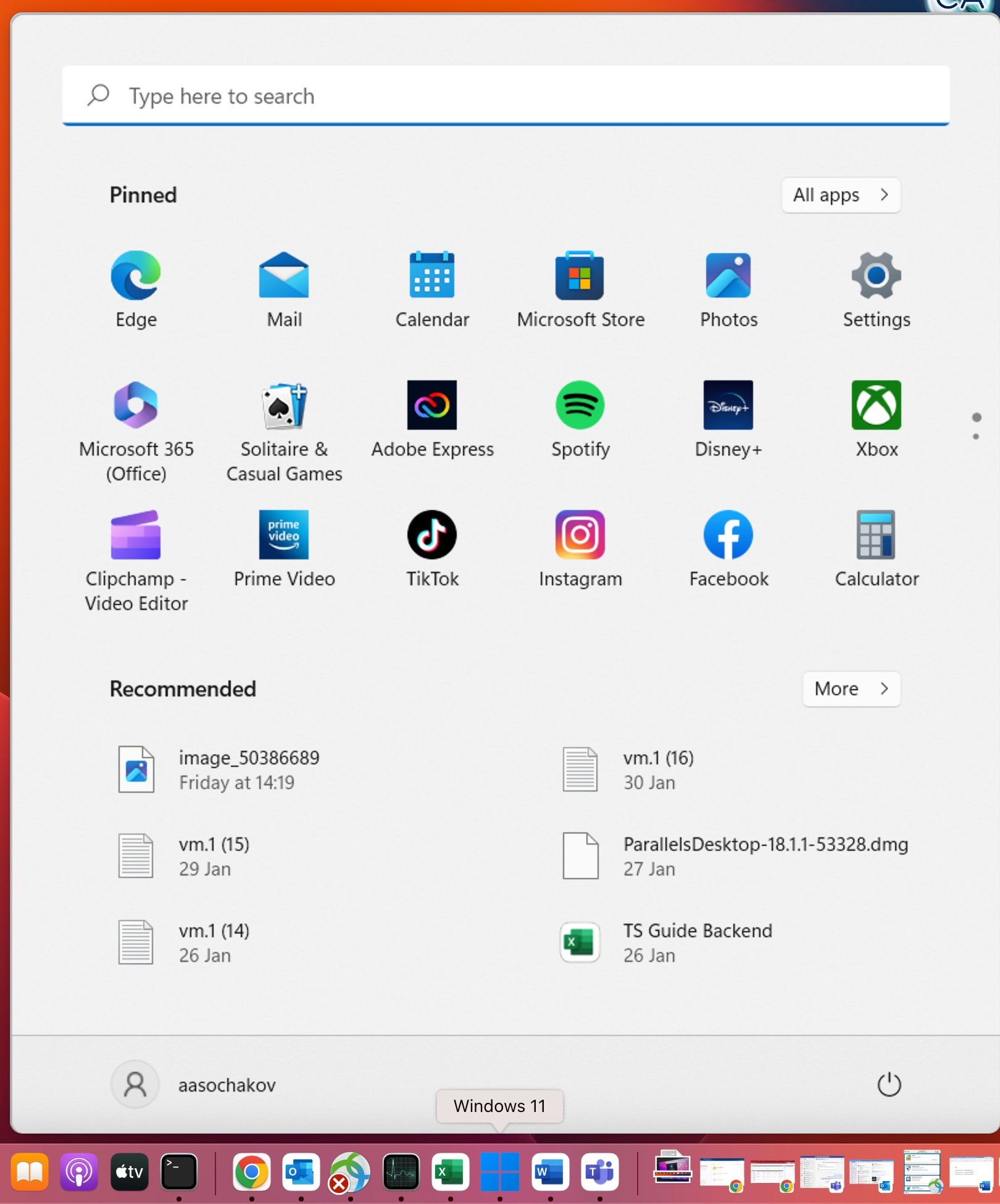
Parallels also has a unique mode for your Windows VM called coherence mode. When enabled, the windows from your Windows 11 VM float alongside your macOS windows—no visible VM, no border—just Windows and Mac together on one screen. It can be a bit jarring at first, but for an average non‑geek user, I can see this working well—though it may also confuse some.
VMware Fusion Professional 25H2 (Commercial + Free)
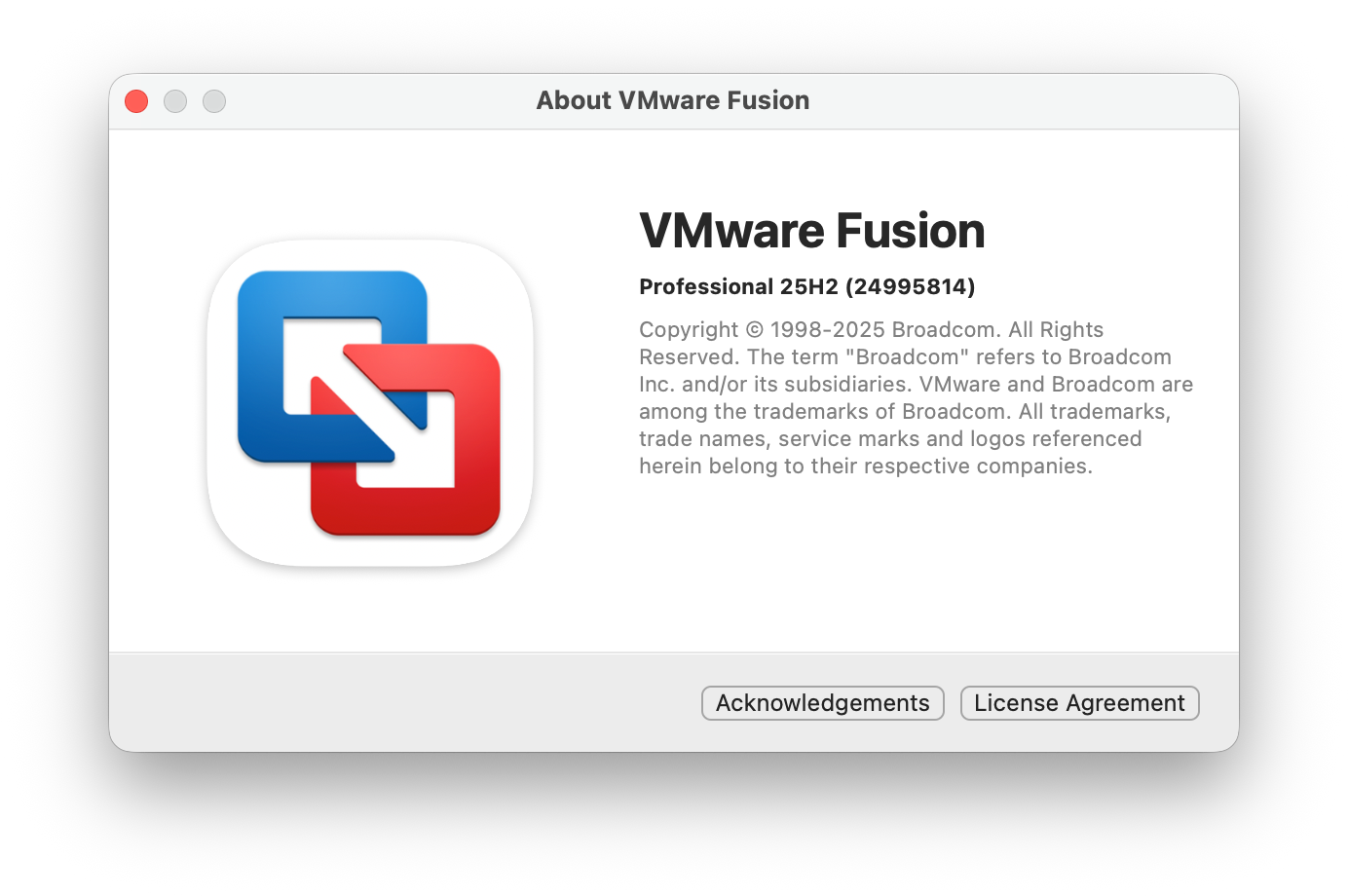
New from Qualcomm—contrary to the doom and gloom I associated with all things VMware after the takeover—Fusion got an update in October 2025, enabling Windows 11 ARM support, and it’s FREE! But you will have to register for an account and agree to 5 different license agreements before you can download VMware Fusion. There is no cost, and it’s rock solid.
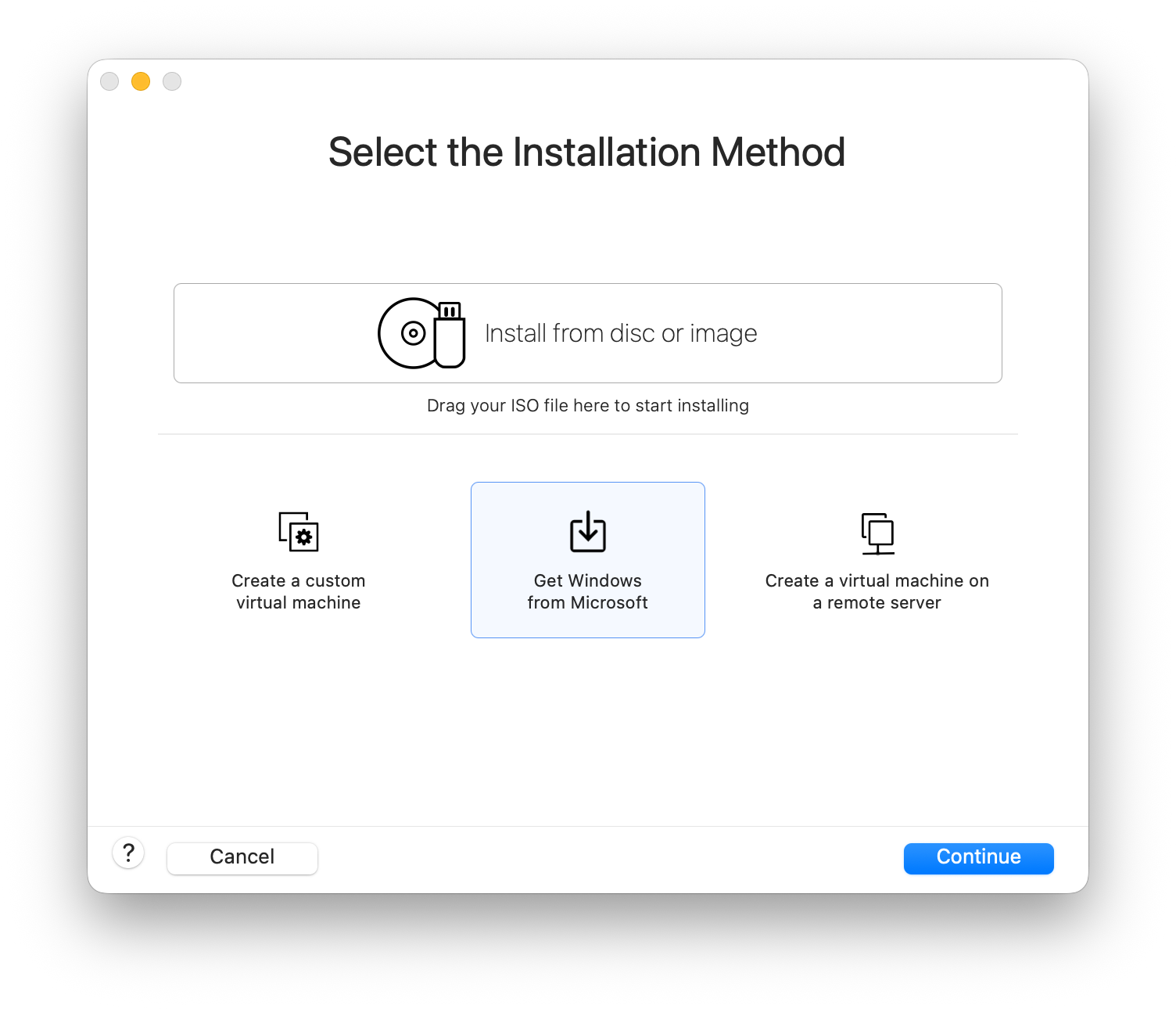
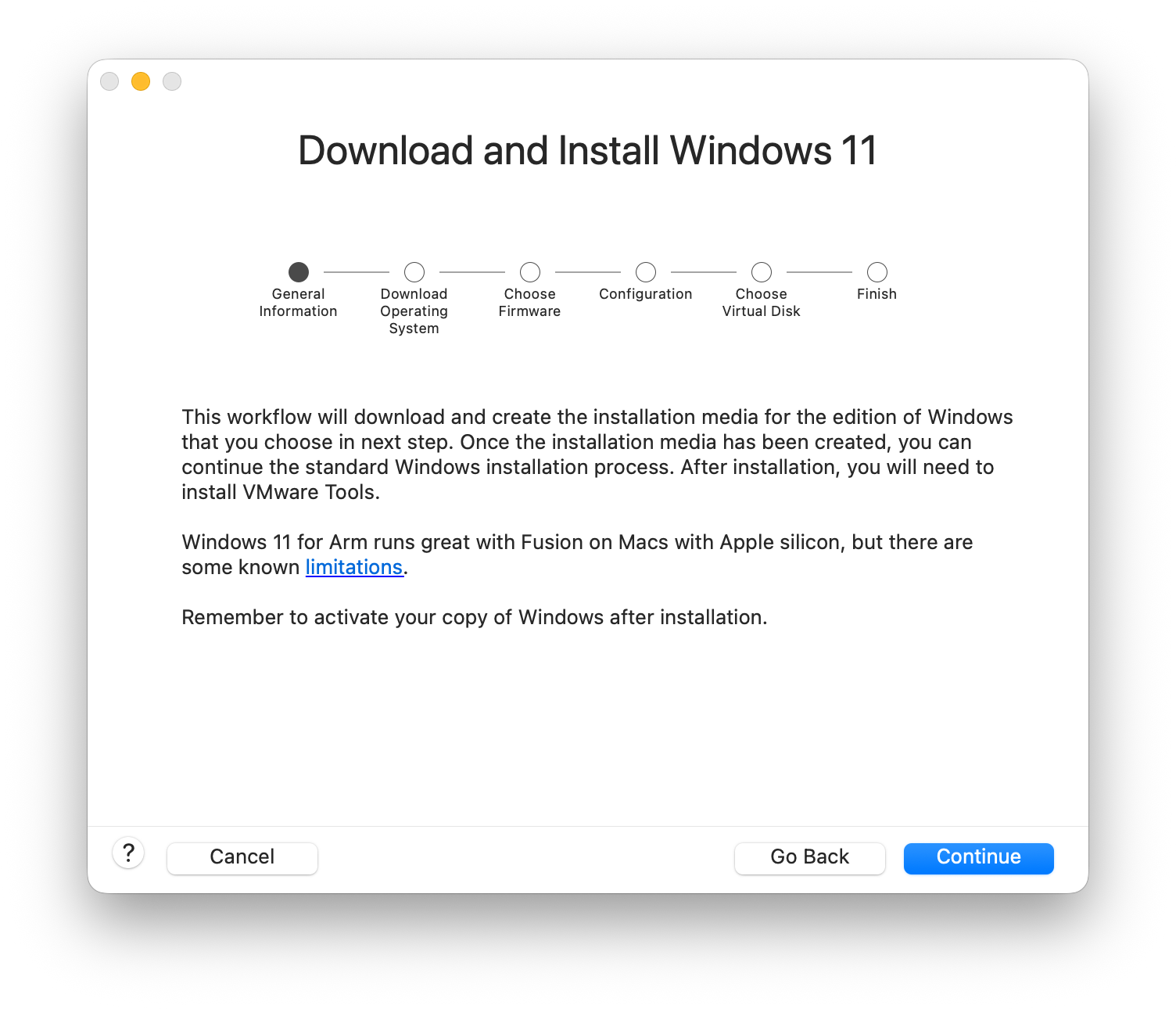
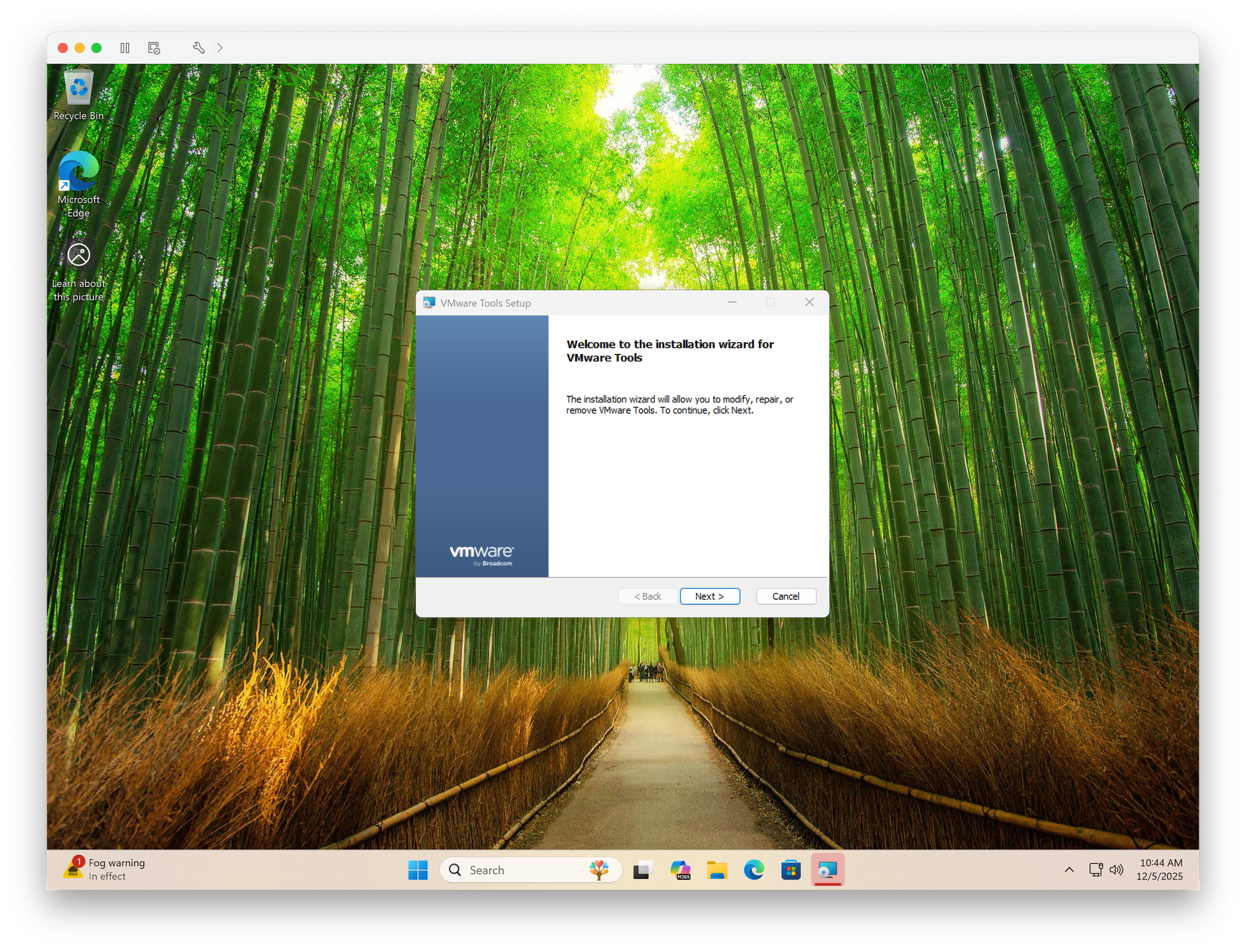
To install Windows—unlike Parallels—VMware Fusion is not as automated: you’ll need to run through the Windows installer, and once complete, install VMware Tools to add all the drivers.
I highly recommend VMware Fusion. It may not be the one‑click ease that Parallels has, but if you are somewhat knowledgeable with computers, you can get Windows working rather easily, and it hasn’t cost you anything (until you pay for your Windows license).
UTM (Open source + Free)
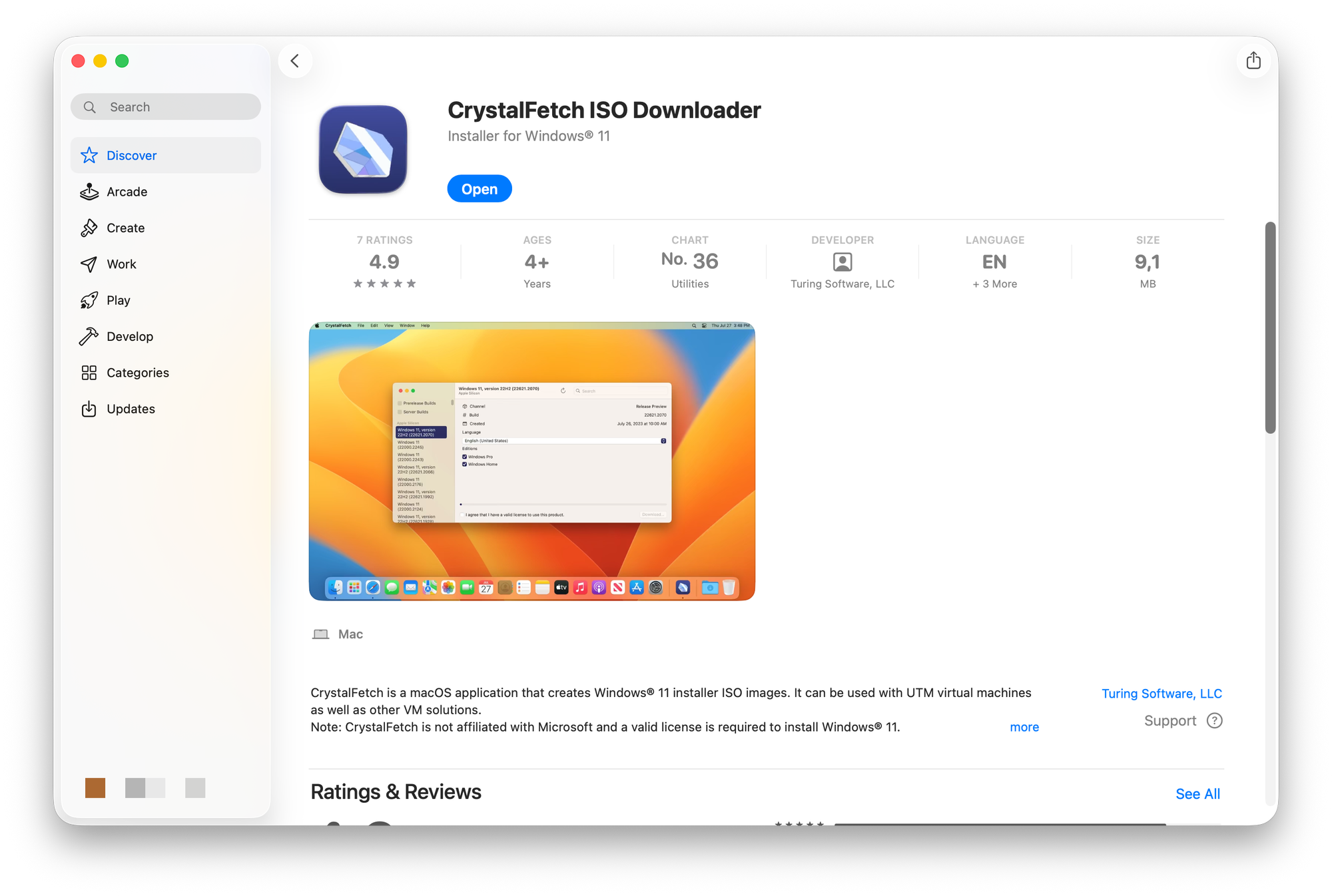
With UTM, there is no automatic ISO download from Microsoft; it requires a free macOS App Store app, CrystalFetch ISO Downloader, where you can download the Windows ISO to use with the UTM install process.
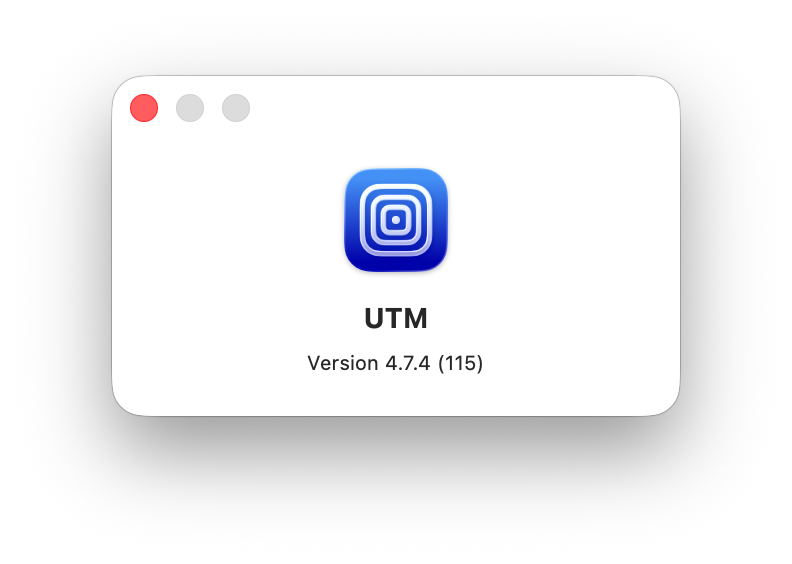
With UTM, it’s a pretty raw process: once you have the ISO, you go through each step to install Windows. It’s not as slick as Parallels and has a few more steps than VMware Fusion, but it’s still not too difficult.
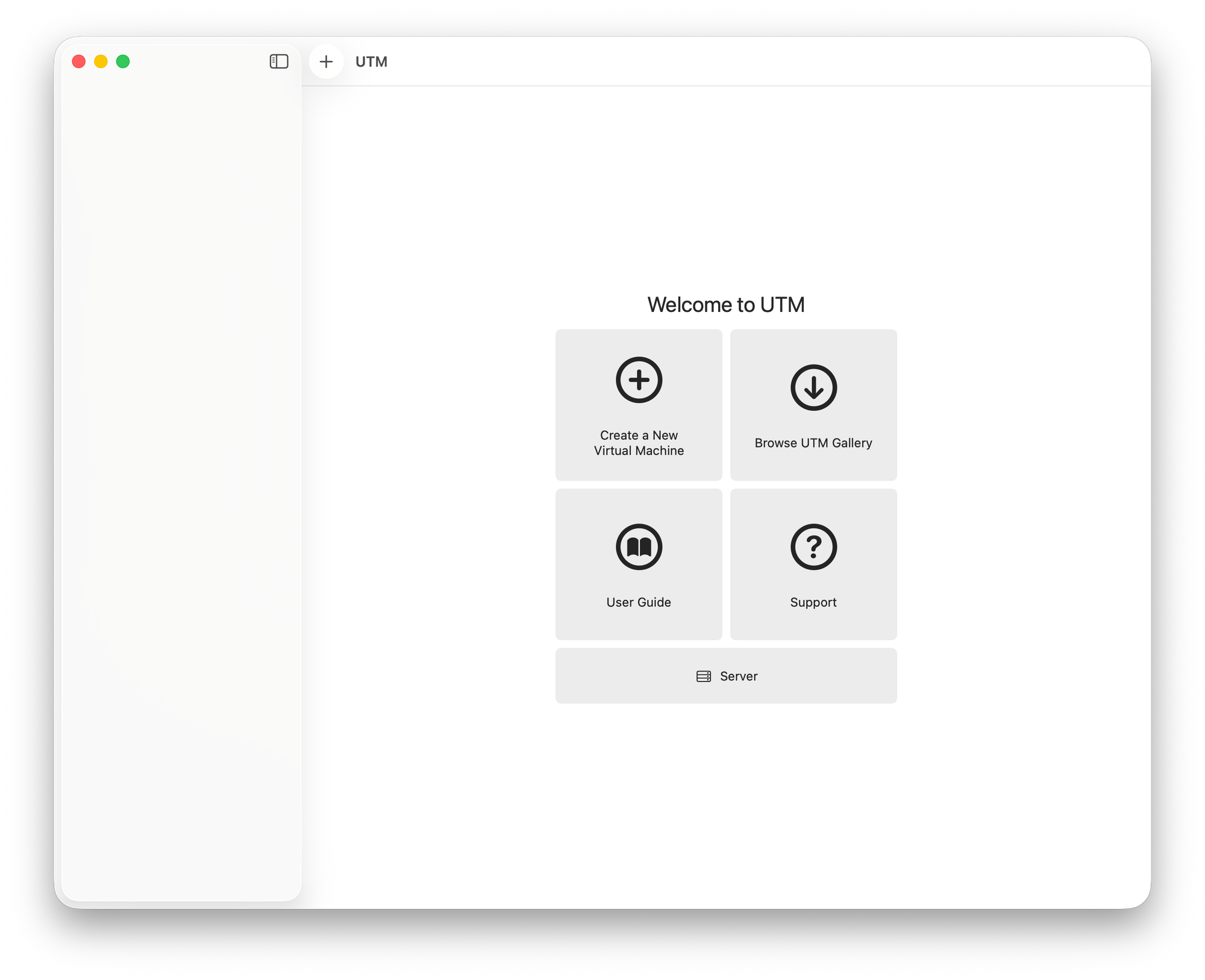
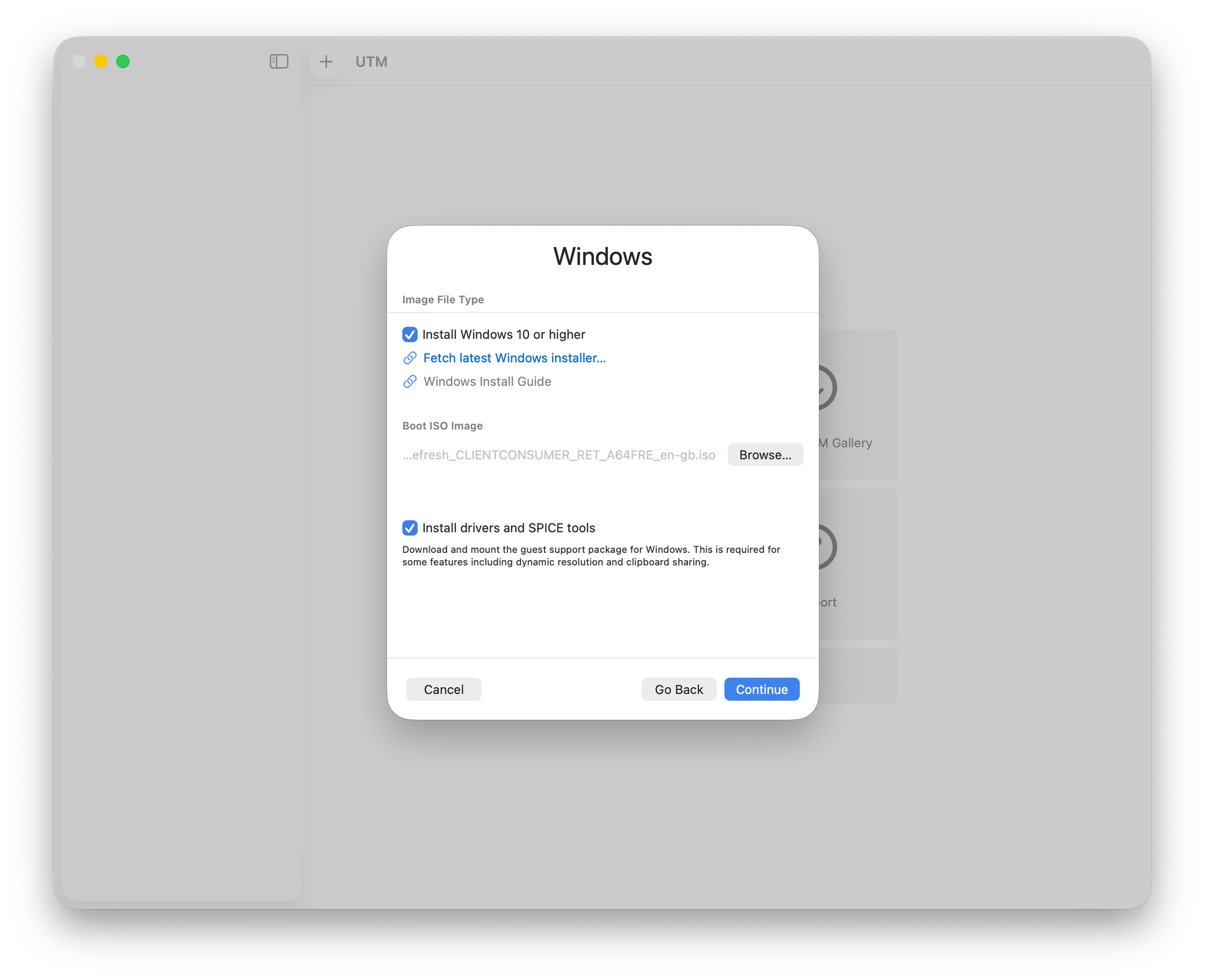
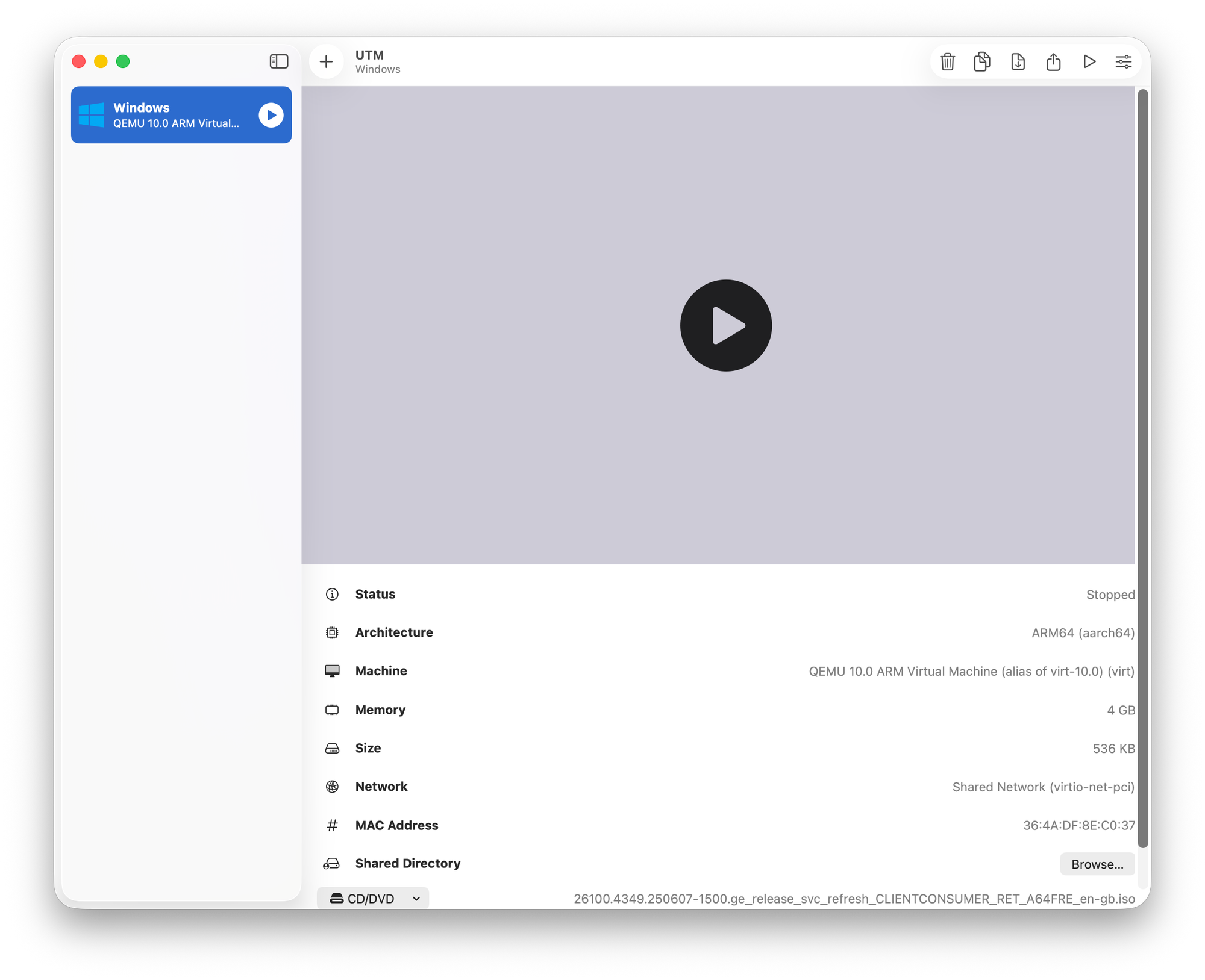
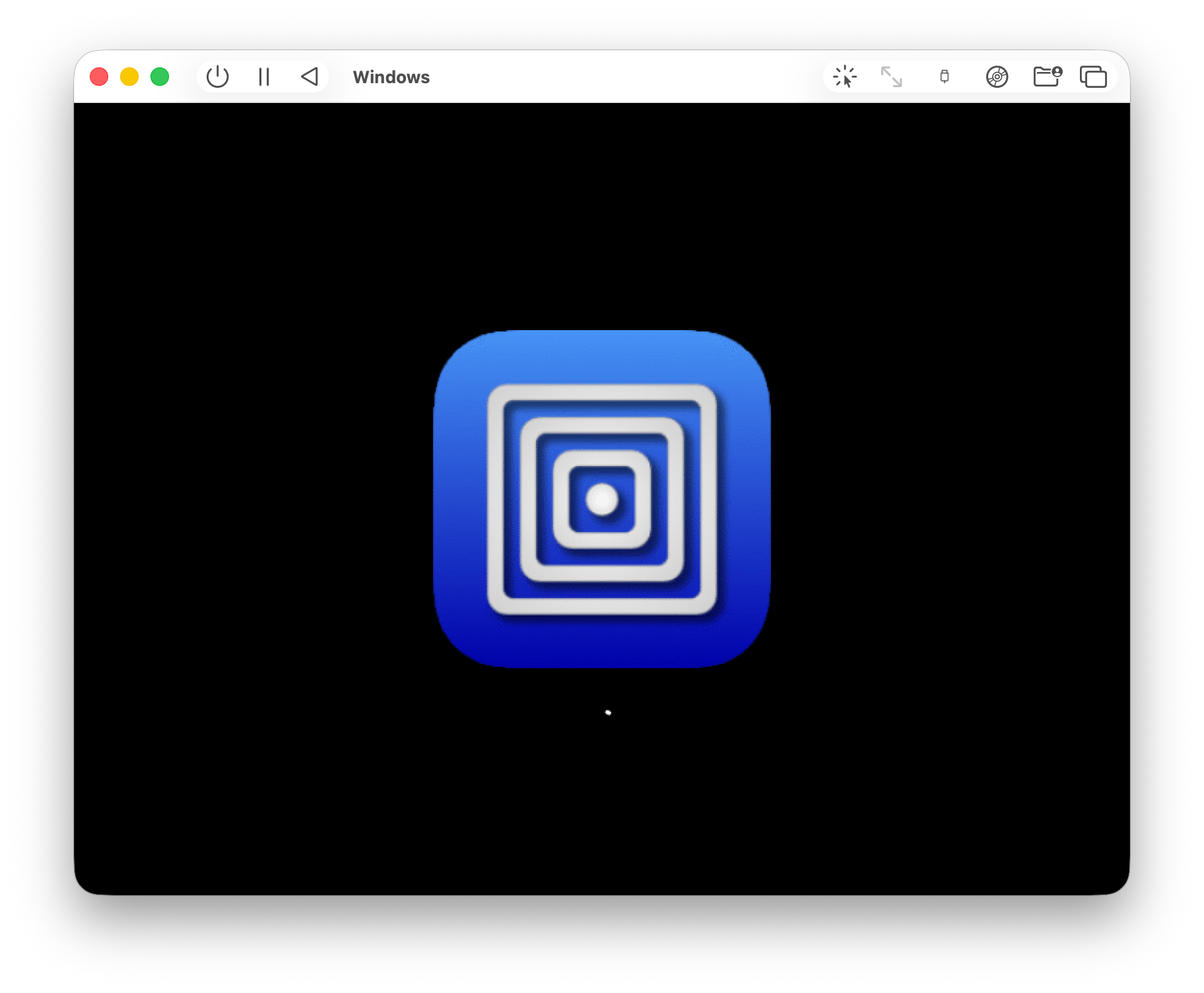
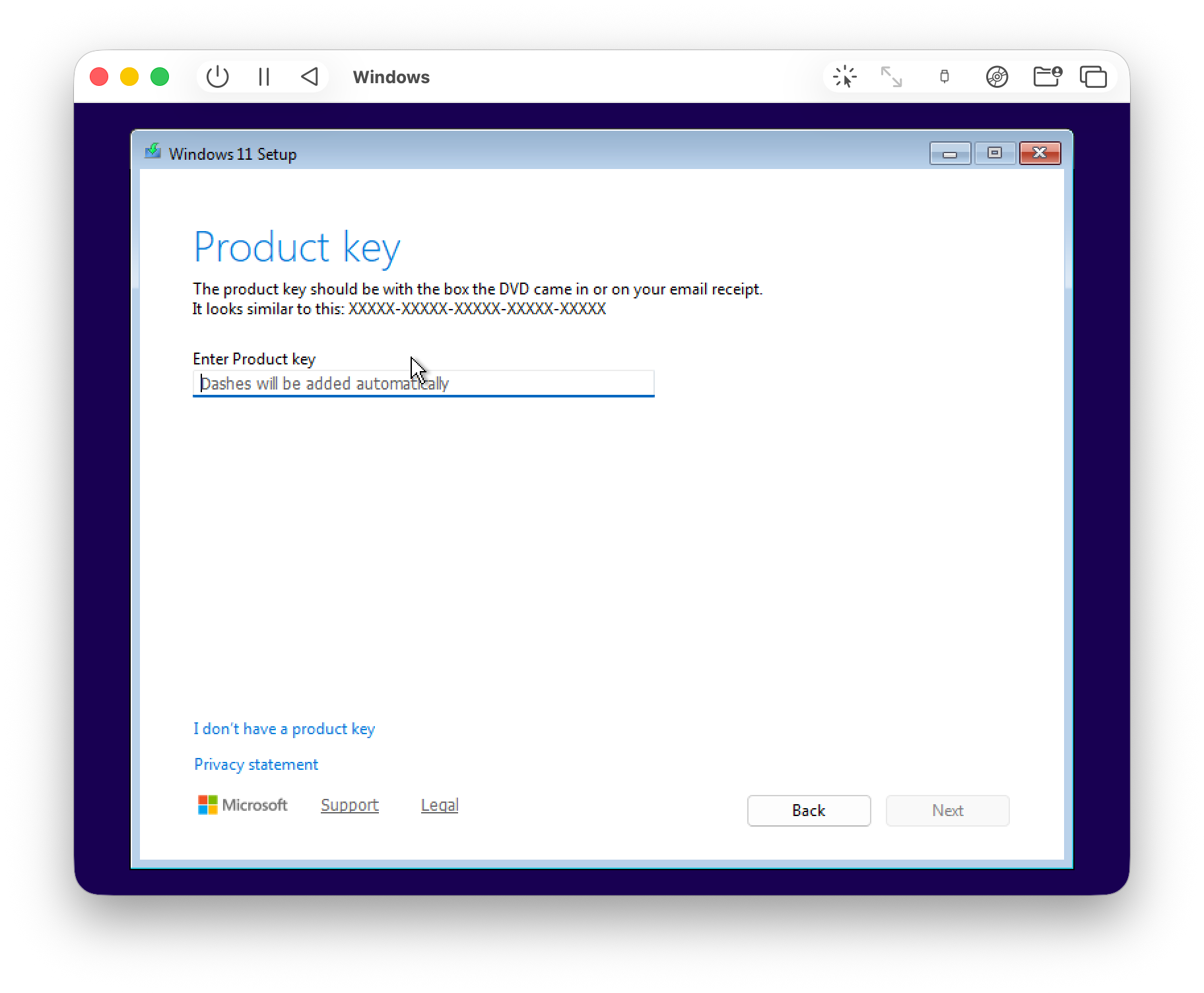
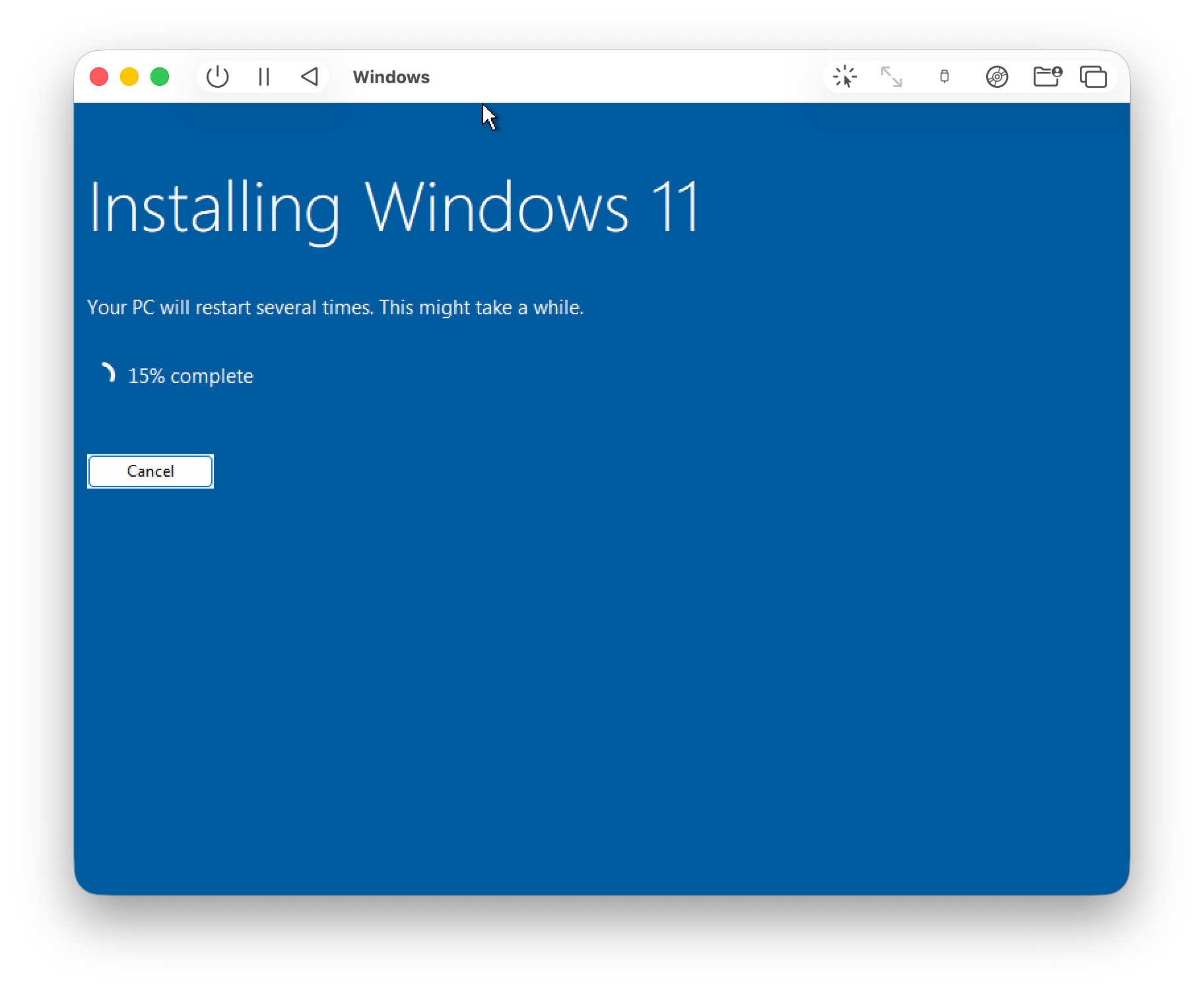
Once Windows was installed, I installed the Windows guest tools (i.e., drivers), but after that I still didn’t have working internet. There is a guide located here that should help you get it up and running. With the requirements for Windows shifting toward online accounts only, I’m not sure how long this workflow will keep working.
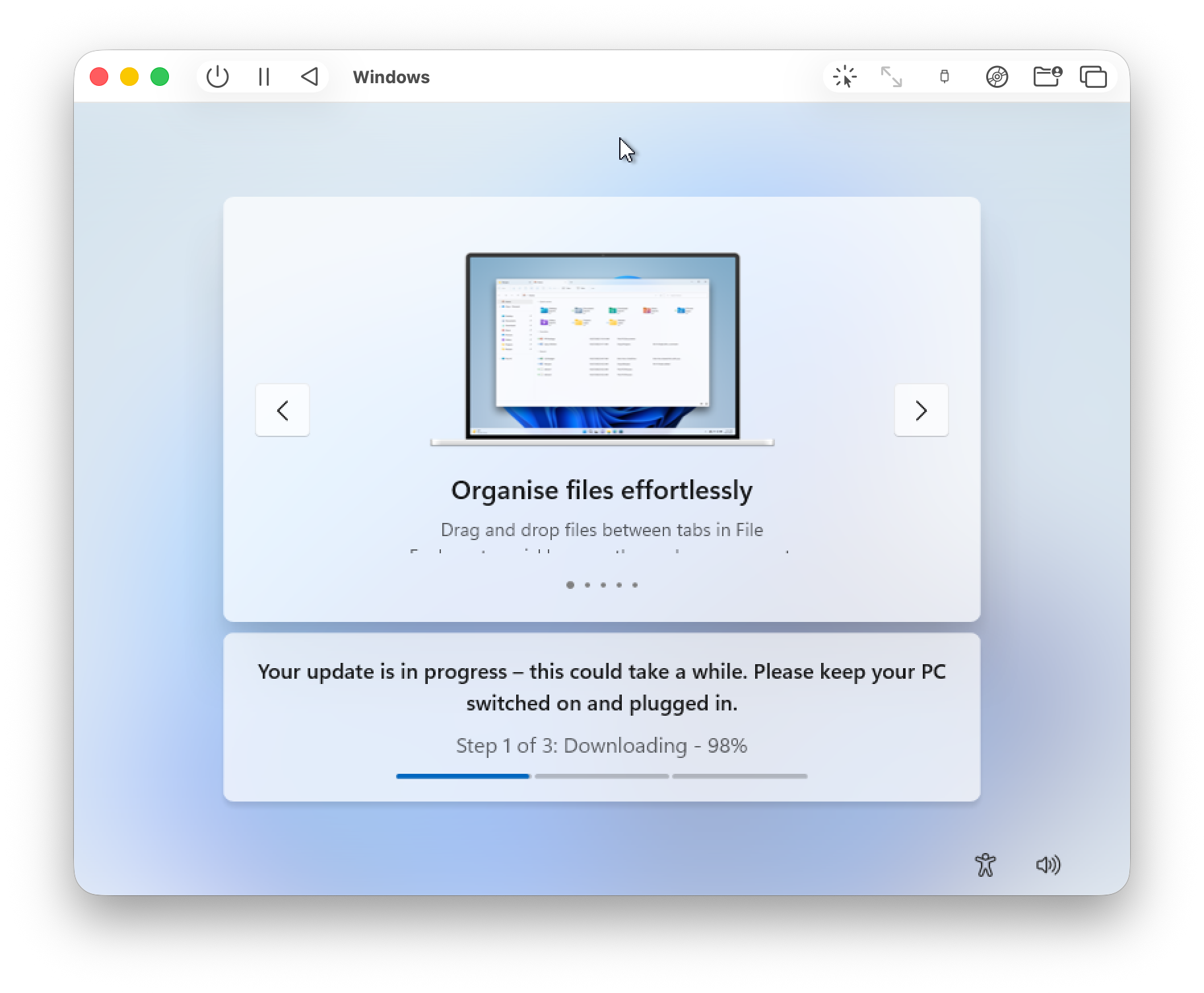
Weird thing is that during the install process I had network, there was no issues with Windows downloading updates, it was only after I installed the drivers that I had network issues.
If you like to hack and tinker, go with UTM; otherwise, since VMware Fusion is free and works well, it might be easier to choose VMware.
In Short
Windows 11 ARM on Apple Silicon is now easy to install across Parallels, VMware Fusion, and UTM. Parallels offers the smoothest install and coherence mode for tight macOS integration; VMware’s latest build supports Windows 11 with a straightforward install process; and UTM provides a free path with CrystalFetch handling ISO downloads. Choose based on your priorities—automation and polish (Parallels), enterprise-friendly tooling (VMware), or open‑source flexibility (UTM)—and you’ll be up and running in under an hour.
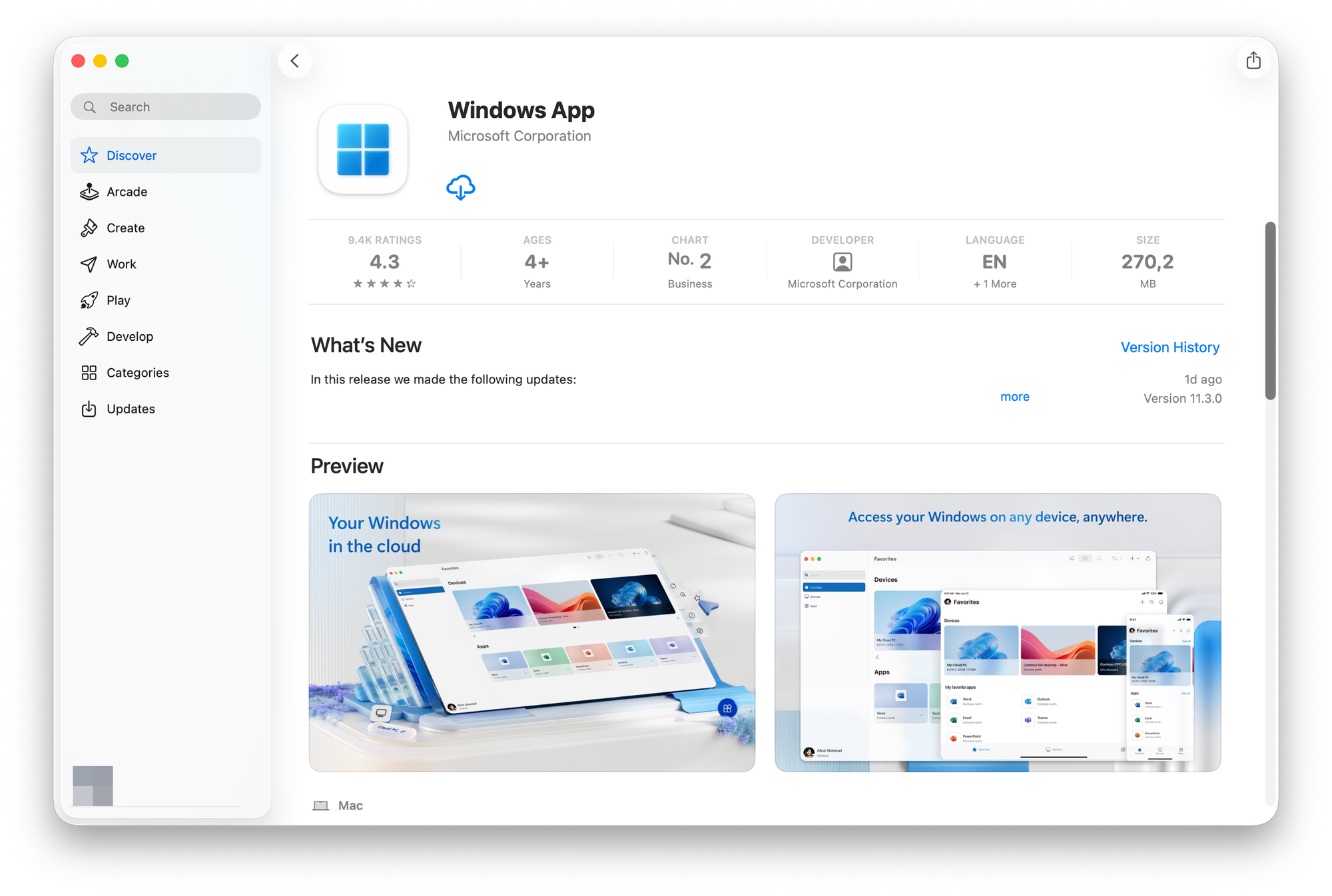
If you don’t want to virtualize Windows locally, you can go cloud with Windows 365 and, on macOS, use the Windows app to connect (works on iOS, iPadOS and VisionOS) . It’s Windows in the cloud—handy for office work in a pinch when you need a managed, always-available Windows environment.
till next time... 👋